Dual-pane file manager for Linux & macOS

Two panels.
Total control.

Your files on one side, where they're going on the other — a folder, a server, even the inside of a zip. Copy, move, pack, and sync without ever losing track.

Download Two Panels See what's inside

Shareware — free 7-day trial, license required afterwards

Two Panels app showing a local Applications folder on the left and an FTP connection on the right, both in a dark dual-pane interface with an orange accent
Why dual-pane

Built for people who move a lot of files, a lot of the time.

A single-pane browser makes you remember where things go. Two Panels keeps both locations on screen, so the destination is never a guess.

01

Servers and shared drives, built in

Open an FTP or SFTP server, or a Windows shared folder, right in a panel — no extra apps. Your saved logins are stored securely, and you can keep browsing while files transfer.

02

Archives open like folders

Step into zip, 7z, tar, ISO, or RAR files as if they were ordinary folders. Look inside, pull files out, drop files in, or pack a new archive with one command.

03

Copy anything to anywhere

From a folder to a server, from an archive to a shared drive — any mix works. Big jobs line up neatly, show their progress, and ask before overwriting anything.

04

Peek at any file with one key

Press F3 to view a file instantly — documents, photos, even huge log files that other apps choke on. Zoom into images, watch GIFs play, and open as many viewers as you like.

05

Search that shows results as it goes

Find files by name or by the text inside them. Matches appear the moment they're found — no waiting for the whole scan to finish.

06

Make it your own

Tabs and bookmarks on each side, rename many files at once, keep two folders in sync. Change any keyboard shortcut, pick a light or dark look, and use it in English or Polish.
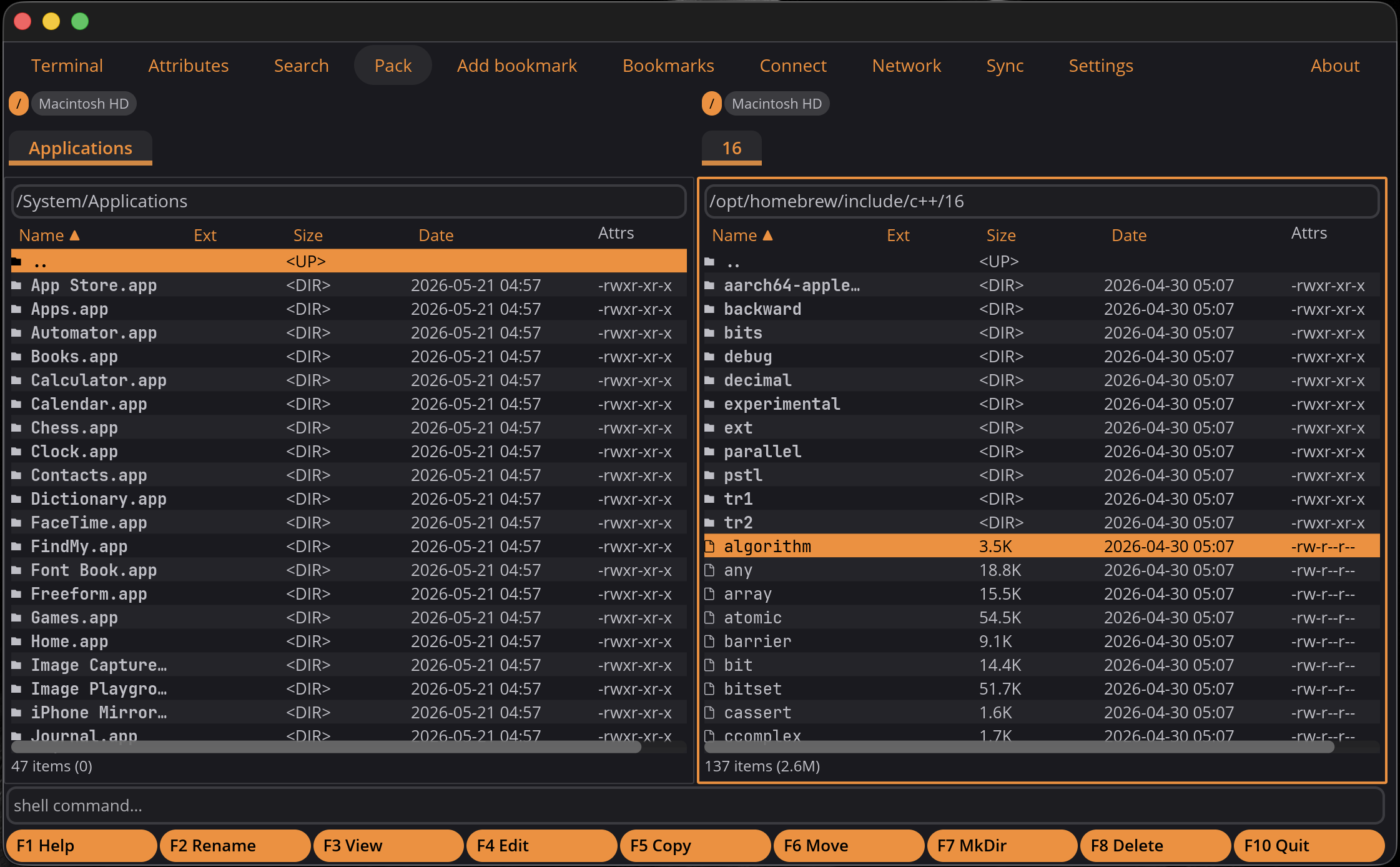
Muscle memory

Everything is one key away.

If you've used Norton or Total Commander before, your muscle memory just works. If you haven't — this is most of what there is to learn.

F2Rename
F3View file
F4Edit file
F5Copy to other pane
F6Move to other pane
F7New folder
F8Delete (to trash)
SpaceSelect a file
Ctrl TNew tab
F10Quit

Don't like a shortcut? Change any of them in Settings.

Linux — .AppImage, run it anywhere
macOS — .dmg, Apple Silicon only
Shareware — free for 7 days, then a license

Stop dragging files.
Start commanding them.

Built for keyboards and the odd shell command. Try everything free for 7 days — after that, a license keeps it running.

Download .AppImage — Linux Download .dmg — macOS